
Domains & SSL
Managing Domains
Add custom domains to your CDN deployment with automatic SSL certificate provisioning.
Adding a Domain
Each domain you add to a deployment needs to be configured with a domain name and an origin source.
Domain
The domain or subdomain visitors will use (e.g., cdn.yoursite.com)
Origin Type
Choose where CDN fetches content from:
External URL
Pull content from any HTTP/HTTPS endpoint - your origin server, another cloud provider's storage, or any web-accessible URL.
Example: https://your-bucket.s3.amazonaws.com
Storage Bucket
Use an Edge Storage bucket as your origin. No external URL needed - select from your buckets directly. Perfect for serving static assets, images, and files.
Storage Bucket Integration
When using a Storage bucket as your origin, CDN fetches content directly via internal networking. This means faster origin fetches, no public bucket configuration required, and unified billing.
DNS Configuration
After adding a domain, you need to configure your DNS to point to Edge CDN.
For subdomains (recommended)
Add a CNAME record:
cdn.yoursite.com. CNAME cdn.edge.network.Root domains (apex domains)
Root domains (e.g., yoursite.com) cannot use CNAME records.
Use your DNS provider's ALIAS or ANAME record type, or consider using Edge DNS which supports this natively.
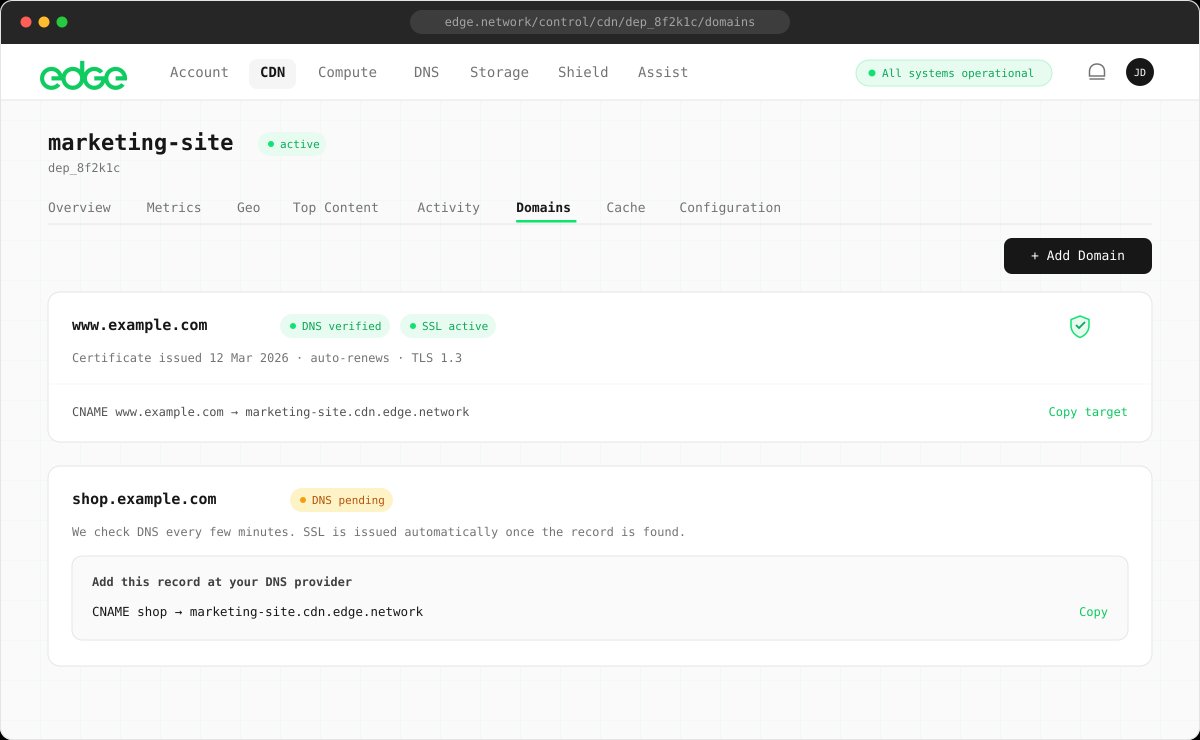
Domain Status
Domains go through several states during setup:
DNS Status
SSL Status
Automatic SSL Certificates
Edge CDN automatically provisions free SSL certificates for all domains using Let's Encrypt.
Free Certificates
No cost for SSL - included with every domain
Auto-Renewal
Certificates renew automatically before expiration
Fast Issuance
Certificates issued in under 60 seconds
TLS 1.3
Modern encryption with the latest TLS version
Editing Domain Origin
You can change the origin for any domain at any time without removing and re-adding it.
- Click on the domain row you want to edit
- The Edit Domain Origin modal will open
- Select a new origin type (External URL or Storage Bucket)
- Enter the new origin URL or select a different bucket
- Click Save Changes
No downtime
Changing the origin is seamless. The CDN will start fetching from the new origin for subsequent requests while existing cached content remains available.
Root Path Behavior
Control what happens when visitors access the root path (/) of your CDN domain directly.
Proxy to Origin
(default)Requests to the root path are proxied to your origin as normal. Use this if your origin has content at its root.
Redirect to URL
Redirect visitors to a URL of your choice. Useful when your CDN subdomain should redirect to your main site.
301 Permanent: For permanent redirects (SEO-friendly, browsers cache it)
302 Temporary: For temporary redirects (not cached)
Show Edge Info Page
Display a simple branded page identifying the domain as an Edge CDN endpoint. Useful for CDN-only subdomains that shouldn't be browsed directly.
Common Use Case
If your CDN is at cdn.yoursite.com serving assets for yoursite.com,
you might want to redirect root path visitors to your main site rather than showing a directory listing or 404 from your origin.
Password Protection
Any CDN domain can be protected with a username and password (HTTP Basic Auth). Visitors are prompted for credentials by their browser before anything is served — ideal for sharing a dev build or staging site on a public URL without making it public.
- Open your deployment's Domains tab
- Click the lock icon on the domain you want to protect
- Enable Require a username and password and set the credentials
- Click Save — protection is live on the edge within seconds
Enforced at the Edge
Credentials are checked before the cache and origin — protected content is never served without them, not even from cache
Hashed Storage
Passwords are stored as bcrypt hashes — edge nodes never see the plaintext, and failed attempts are naturally rate-limited by the hash cost
SSL Keeps Working
Certificate issuance and renewal are exempt from the check, so protected domains still get automatic SSL
No Performance Cost
Verified credentials are cached at the edge, so authenticated requests are served at full CDN speed
Private dev previews
Upload a build to an Edge Storage bucket, serve it on a test domain with the bucket as origin, and enable password protection. You get a shareable HTTPS URL that only people with the credentials can open.
Removing a Domain
You can remove a domain from your deployment at any time.
Traffic will stop immediately
When you remove a domain, traffic to that domain will stop being served by Edge CDN. Update your DNS records to point elsewhere before removing.
- Click the trash icon next to the domain you want to remove
- Confirm the removal in the modal
- The domain and its SSL certificate will be removed